Discos duros de portátiles, SSD y SSHD
¿Por qué comprar el nuevo disco duro de IPC-Computadora?
- Calidad original - se ajusta perfectamente a su portátil
- ¡Ahora nuevo! Nuestros SSD de la nueva marca Asus JoGeek
- Distribuidor oficial de repuestos de muchos fabricantes de ordenadores portátiles
- Los mejores precios - entrega rápida
- Cambio de disco duro en nuestro taller de reparación de portátiles
- Soporte gratuito sobre el tema de la instalación del disco duro

Encontrar los discos duros adecuados por modelo o características
Alternativa para Samsung MZ-77Q1T0BW SSD 1TB (2,5 pulgadas / 6,4 cm)
más gastos de envío
Acer KH.01K08.028 Original HDD 1TB (2,5 pulgadas / 6,4 cm)
más gastos de envío
Alternativa para Samsung MZ-77Q2T0BW SSD 2TB (2,5 pulgadas / 6,4 cm)
más gastos de envío
Alternativa para Western Digital WDS400T3B0A SSD 4TB (2,5 pulgadas / 6,4 cm)

más gastos de envío
Alternativa para Lenovo 01FR925 PCIe NVMe SSD 1TB (M.2 22 x 80 mm)

más gastos de envío
Acer KH.01K04.016 Original HDD 1TB (2,5 pulgadas / 6,4 cm)
más gastos de envío
Substituto para Asus 03B03-00471400 PCIe NVMe SSD 512GB (M.2 22 x 30 mm)
más gastos de envío
Substituto para Asus 03B03-00470700 PCIe NVMe SSD 512GB (M.2 22 x 30 mm)
más gastos de envío
Substituto para Asus 03B03-00472800 PCIe NVMe SSD 512GB (M.2 22 x 30 mm)
más gastos de envío
Substituto para Asus 03B03-00474500 PCIe NVMe SSD 512GB (M.2 22 x 30 mm)
más gastos de envío
Substituto para Dell MVBSN1 PCIe NVMe SSD 512GB (M.2 22 x 30 mm)
más gastos de envío
Substituto para Asus 03B03-00373700 PCIe NVMe SSD 512GB (M.2 22 x 30 mm)
más gastos de envío
Crucial BX500 CT1000BX500SSD1 SSD 1TB (2,5 pulgadas / 6,4 cm)
más gastos de envío
Crucial BX500 CT1050MX300SSD1 SSD 1TB (2,5 pulgadas / 6,4 cm)
más gastos de envío
Crucial BX500 CT960BX500SSD1 SSD 1TB (2,5 pulgadas / 6,4 cm)
más gastos de envío
Acer KN.25604.039 Original SSD 256GB (M.2 22 x 80 mm)
más gastos de envío
Samsung 870 EVO MZ-77E500 SSD 500GB (2,5 pulgadas / 6,4 cm)
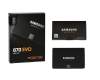
más gastos de envío
Samsung 870 EVO MZ-77E500B/EU SSD 500GB (2,5 pulgadas / 6,4 cm)
más gastos de envío
Samsung 870 EVO MZ7L3500HBLU SSD 500GB (2,5 pulgadas / 6,4 cm)
más gastos de envío
TRANSCEND 400S TS512GMTE400S PCIe NVMe SSD 512GB (M.2 22 x 42 mm)
más gastos de envío
Los discos duros más comprados
PNY CS1030 M280CS1030-500-RB PCIe NVMe SSD 500GB (M.2 22 x 80 mm)

más gastos de envío
Samsung 990 EVO Plus MZ-V9S1T0BW PCIe NVMe SSD 1TB (M.2 22 x 80 mm)
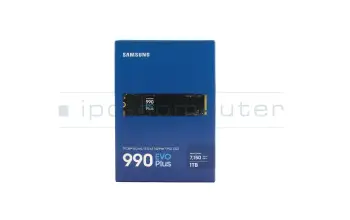
más gastos de envío
Crucial BX500 CT2000BX500SSD1 SSD 2TB (2,5 pulgadas / 6,4 cm)
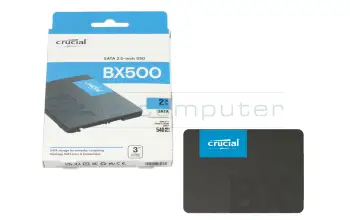
más gastos de envío
Crucial BX500 CT1000BX500SSD1 SSD 1TB (2,5 pulgadas / 6,4 cm)
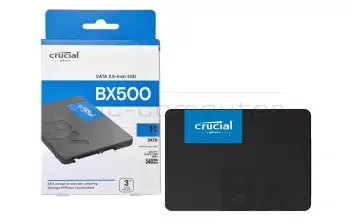
más gastos de envío
Western Digital SN740 SDDPTQD-512G-1102 PCIe NVMe SSD 512GB (M.2 22 x 30 mm)
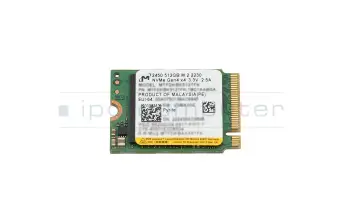
más gastos de envío
Crucial BX500 CT500BX500SSD1 SSD 500GB (2,5 pulgadas / 6,4 cm)
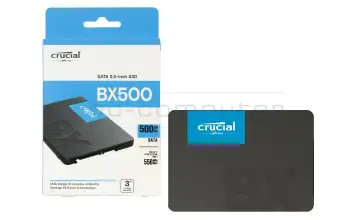
más gastos de envío
Samsung PM9A1 MZVL21T0HCLR-00B07 PCIe NVMe SSD 1TB (M.2 22 x 80 mm)
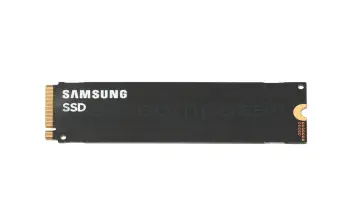
más gastos de envío
TRANSCEND 400S TS512GMTE400S PCIe NVMe SSD 512GB (M.2 22 x 42 mm)
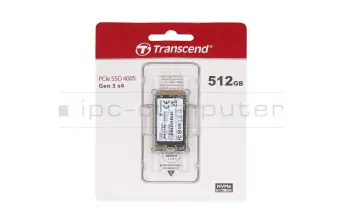
más gastos de envío
Crucial BX500 CT4000BX500SSD1 SSD 4TB (2,5 pulgadas / 6,4 cm)
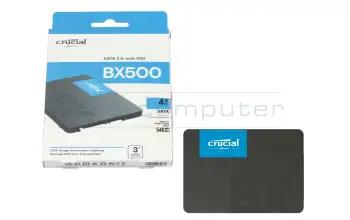
más gastos de envío
ADATA SU650 ASU650SS-512GT-R SSD 512GB (2,5 pulgadas / 6,4 cm)

más gastos de envío
Western Digital SA510 WDS500G3B0B-00AXS0 SSD 500GB (M.2 22 x 80 mm)

más gastos de envío
Samsung 870 EVO MZ-77E500B/EU SSD 500GB (2,5 pulgadas / 6,4 cm)
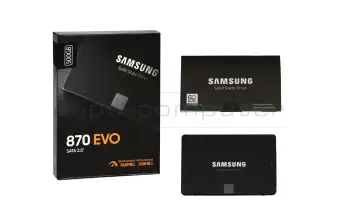
más gastos de envío
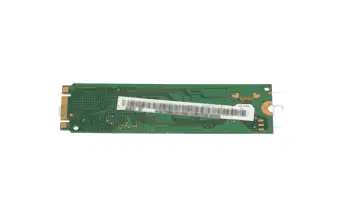
Acer KN.25604.039 Original SSD 256GB (M.2 22 x 80 mm)
más gastos de envío
Team Group VULCAN Z QLC T253TY004T0C101 SSD 4TB (2,5 pulgadas / 6,4 cm)

más gastos de envío
Los últimos marcos de montaje y adaptadores de nuestra gama
PNY CS1030 M280CS1030-500-RB PCIe NVMe SSD 500GB (M.2 22 x 80 mm)
más gastos de envío
Samsung 990 EVO Plus MZ-V9S1T0BW PCIe NVMe SSD 1TB (M.2 22 x 80 mm)
más gastos de envío
Samsung 990 EVO Plus MZ-V9S1T0 PCIe NVMe SSD 1TB (M.2 22 x 80 mm)
más gastos de envío
Crucial BX500 CT1000BX500SSD1 SSD 1TB (2,5 pulgadas / 6,4 cm)
más gastos de envío
Crucial BX500 CT1050MX300SSD1 SSD 1TB (2,5 pulgadas / 6,4 cm)
más gastos de envío
Crucial BX500 CT960BX500SSD1 SSD 1TB (2,5 pulgadas / 6,4 cm)
más gastos de envío
Alternativa para Samsung MZ-77Q1T0BW SSD 1TB (2,5 pulgadas / 6,4 cm)
más gastos de envío
Crucial BX500 CT2000BX500SSD1 SSD 2TB (2,5 pulgadas / 6,4 cm)
más gastos de envío
Alternativa para Samsung MZ-77Q2T0BW SSD 2TB (2,5 pulgadas / 6,4 cm)
más gastos de envío
Substituto para Asus 03B03-00471400 PCIe NVMe SSD 512GB (M.2 22 x 30 mm)
más gastos de envío
Substituto para Asus 03B03-00373700 PCIe NVMe SSD 512GB (M.2 22 x 30 mm)
más gastos de envío
Substituto para Asus 03B03-00470700 PCIe NVMe SSD 512GB (M.2 22 x 30 mm)
más gastos de envío
Substituto para Asus 03B03-00472800 PCIe NVMe SSD 512GB (M.2 22 x 30 mm)
más gastos de envío
Substituto para Asus 03B03-00474500 PCIe NVMe SSD 512GB (M.2 22 x 30 mm)
más gastos de envío
Substituto para Micron MTFDKBK512TFK PCIe NVMe SSD 512GB (M.2 22 x 30 mm)
más gastos de envío
Western Digital SN740 R-R-WDT-MVBSN1 PCIe NVMe SSD 512GB (M.2 22 x 30 mm)
más gastos de envío
Western Digital SN740 SDDPTQD-512G-1102 PCIe NVMe SSD 512GB (M.2 22 x 30 mm)
más gastos de envío
Substituto para Dell MVBSN1 PCIe NVMe SSD 512GB (M.2 22 x 30 mm)
más gastos de envío
Crucial BX500 CT500BX500SSD1 SSD 500GB (2,5 pulgadas / 6,4 cm)
más gastos de envío
Crucial BX500 2408E899E794 SSD 500GB (2,5 pulgadas / 6,4 cm)
más gastos de envío
Alternativa para Lenovo 01FR925 PCIe NVMe SSD 1TB (M.2 22 x 80 mm)
más gastos de envío
Substituto para Lenovo 5SS0V14993 PCIe NVMe SSD 1TB (M.2 22 x 80 mm)
más gastos de envío
Substituto para Western Digital BK2T00C PCIe NVMe SSD 1TB (M.2 22 x 80 mm)
más gastos de envío
Substituto para Acer KN.01K0B.005 PCIe NVMe SSD 1TB (M.2 22 x 80 mm)
más gastos de envío
Substituto para Acer KN.01K0D.003 PCIe NVMe SSD 1TB (M.2 22 x 80 mm)
más gastos de envío
¿Qué es un disco duro?
El disco duro se conoce coloquialmente como la memoria del cuaderno. Almacena programas y otros archivos. Hoy en día, se distingue entre dos tecnologías principales: el clásico HDD (Hard Disk Drive) y el moderno SSD (Solid State Drive).
El disco duro consiste en discos magnéticos giratorios y una cabeza de lectura. Con él se obtiene mucho espacio de almacenamiento a un precio razonable. Aunque es muy sensible a los choques o a la colocación incorrecta y, por lo tanto, debe manejarse con cuidado, tiene la gran ventaja de que los datos aparentemente perdidos pueden recuperarse a menudo.
El SSD funciona de manera similar a una memoria USB, consiste en la llamada memoria flash. La falta de piezas mecánicas lo hace mucho más silencioso y resistente a los golpes en comparación con el disco duro. También es más ligero y funciona mucho más rápido, lo que lo hace especialmente adecuado para los dispositivos móviles y el sector de los juegos. Las muchas ventajas tienen por supuesto su precio, el costo por GB es mucho más caro que el HDD. En definitiva, se puede decir que la instalación de un SSD merece la pena si se quiere aumentar la velocidad y el rendimiento del portátil.
Una combinación de HDD y SSD es el SSHD. Este disco duro híbrido combina la tecnología de disco magnético del HDD con la memoria flash del SSD. Por lo tanto, tiene una capacidad de almacenamiento considerable, pero funciona mucho más rápido que el disco duro convencional.
Interessante Beiträge Rund um das Thema Notebook Festplatten und SSD's

Schritt für Schritt Anleitung: Datenumzug auf neue SSD
Sie haben eine neue SSD in Ihrem Notebook eingebaut? Hier können Sie nachlesen, wie Sie Ihre Daten ganz einfach ohne Verluste übertragen.

Gelöschte Dateien von Festplatte/SSD wiederherstellen:
Daten gelöscht oder Speichermedium defekt? Hier erfährst du, wie du gelöschte Dateien von Festplatte, SD-Karte oder USB-Stick wiederherstellst.

Festplatte wird nicht angezeigt? - Daran kann es liegen
Die Notebook Festplatte wird im Bios nicht erkannt und das das Gerät lässt sich nicht mehr starten. Worin das Problem liegen könnte, erklären wir Ihnen in diesem Beitrag.
Welche Unterschiede gibt es bei M.2 SSD's?
Es gibt eine Vielzahl unterschiedlicher M.2 SSD's. Sie differenzieren sich in verschiedenen Punkten. In diesem Video zeigen wir Ihnen die verschiedenen Varianten.

JoGeek by Asus
JoGeek ist das neue Tochterunternehmen von Asus, welches universale Ersatzteile für Notebooks anbietet. Unsere 1. Wahl, wenn es um Upgrades in unserer hauseigenen Reparaturwerkstatt geht. Die M.2 und SATA SSD's überzeugen mit schnellerer Lese- und Schreibgeschwindigkeit.