Memoria del portátil / RAM
¿Por qué comprar memoria RAM de un ordenador IPC?
- Nuestra garantía de calidad garantiza un uso seguro.
- ¡Ahora nuevo! Nuestra RAM de la nueva marca Asus JoGeek
- Nuestro buscador de módulos de RAM le ayuda a encontrar la memoria RAM adecuada de forma rápida y sencilla.
- Soporte técnico gratuito para preguntas sobre la memoria RAM.

Los principales recuerdos más comprados
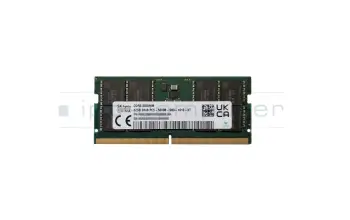
Hynix HMCG88AGBSA memoria 32GB DDR5-RAM
más gastos de envío
Substituto para Acer KN.0320G.029 memoria 32GB DDR5-RAM
más gastos de envío
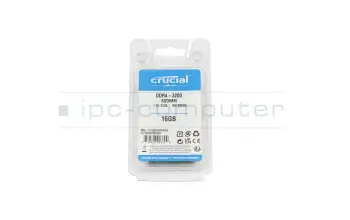
Crucial CT16G4SFD832A memoria 16GB DDR4-RAM
más gastos de envío
Crucial CT16G4SFRA32A memoria 16GB DDR4-RAM
más gastos de envío
Crucial CT16G56C46S5 memoria 16GB DDR5-RAM
más gastos de envío
Substituto para Asus 03A12-00022600 memoria 16GB DDR5-RAM
más gastos de envío
Alternativa para Hynix HMCG78AGBSA memoria 16GB DDR5-RAM
más gastos de envío
Alternativa para Samsung M425R2GA3PB0-CWM memoria 16GB DDR5-RAM
más gastos de envío
Alternativa para Micron MTC8C1084S1SC56BD1 memoria 16GB DDR5-RAM
más gastos de envío
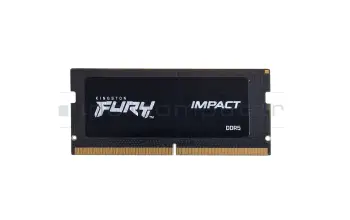
Kingston KF556S40IB-16 memoria 16GB DDR5-RAM
más gastos de envío
Kingston 9905790-052.A00G memoria 16GB DDR5-RAM
más gastos de envío
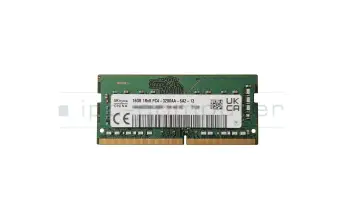
Hynix HMAA2GS6CJR8N-XN memoria 16GB DDR4-RAM
más gastos de envío
Substituto para Acer KN.16G0G.036 memoria 16GB DDR4-RAM
más gastos de envío
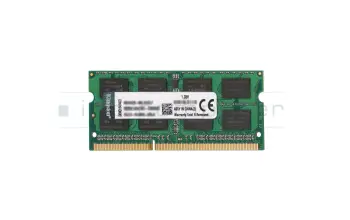
Kingston KVR16LS11/8 memoria 8GB DDR3L-RAM
más gastos de envío
Kingston KCP3L16SD8/8 memoria 8GB DDR3L-RAM
más gastos de envío
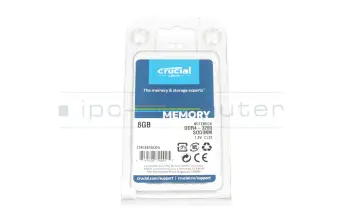
Crucial CT8G4SFRA32A memoria 8GB DDR4-RAM
más gastos de envío
Crucial CT8G4SFS832A memoria 8GB DDR4-RAM
más gastos de envío
Substituto para Micron MTA4ATF1G64HZ-3G2F1 memoria 8GB DDR4-RAM
más gastos de envío
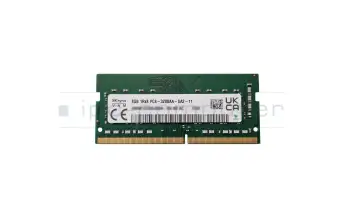
Hynix HMA81GS6DJR8N-XN memoria 8GB DDR4-RAM
más gastos de envío
Substituto para Acer KN.8GB0G.069 memoria 8GB DDR4-RAM
más gastos de envío
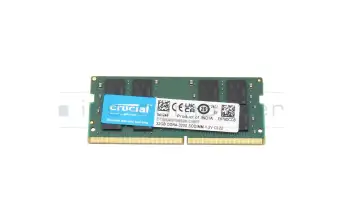
Crucial CT32G4SFD832A memoria 32GB DDR4-RAM
más gastos de envío
Crucial CT32G56C46S5 memoria 32GB DDR5-RAM
más gastos de envío
Alternativa para Asus 03A12-00030700 memoria 32GB DDR5-RAM
más gastos de envío
Alternativa para Dell AC774052 memoria 32GB DDR5-RAM
más gastos de envío
Alternativa para Hynix HMCG88AGBSA memoria 32GB DDR5-RAM
más gastos de envío
Encuentre la batería adecuada por modelo o características
HP HPM1-N20978-981 ECC SODIMM 16GB DDR5-5600 Sam

más gastos de envío
HP HPM1-N20979-381 ECC SODIMM 32GB DDR5-5600 Hyni
más gastos de envío
HP HPM1-N20979-981 ECC SODIMM 32GB DDR5-5600 Sam
más gastos de envío
HP HPM1-N20980-381 ECC UDIMM 16GB DDR5-5600 Hynix
más gastos de envío
HP HPM1-N20980-981 ECC UDIMM 16GB DDR5-5600 Sam 1
más gastos de envío
HP HPM1-N20981-381 ECC UDIMM 32GB DDR5-5600 Hynix
más gastos de envío
HP HPM1-N20981-981 ECC UDIMM 32GB DDR5-5600 Sam 1
más gastos de envío
HP HPM1-N20981-982 ECC UDIMM 32GB DDR5-5600 Samsu
más gastos de envío
HP HPM1-N24663-800 GNRC-UDIMM 8GB DDR5-4800 NECC
más gastos de envío
HP HPM1-N24665-800 GNRC-UDIMM 16GB DDR5-4800 NECC
más gastos de envío
La última memoria de nuestra gama
Hynix HMCG88AGBSA memoria 32GB DDR5-RAM
más gastos de envío
Substituto para Acer KN.0320G.029 memoria 32GB DDR5-RAM
más gastos de envío
Lenovo 5M30Z71796 memoria 16GB DDR5-RAM
más gastos de envío
Lenovo 5M31L87360 memoria 16GB DDR5-RAM
más gastos de envío
Substituto para Hynix HMCG78AGBSA092N BA memoria 16GB DDR5-RAM
más gastos de envío
Substituto para Hynix HMCG78AGBSA095N BA memoria 16GB DDR5-RAM
más gastos de envío
Alternativa para Samsung M425R2GA3PB0-CWM0L memoria 16GB DDR5-RAM
más gastos de envío
Alternativa para Ramaxel RMSB3410HA88IBF-5600NA memoria 16GB DDR5-RAM
más gastos de envío
Crucial CT16G4SFD832A memoria 16GB DDR4-RAM
más gastos de envío
Crucial CT16G4SFRA32A memoria 16GB DDR4-RAM
más gastos de envío
Crucial CT16G56C46S5 memoria 16GB DDR5-RAM
más gastos de envío
Substituto para Asus 03A12-00022600 memoria 16GB DDR5-RAM
más gastos de envío
Alternativa para Hynix HMCG78AGBSA memoria 16GB DDR5-RAM
más gastos de envío
Alternativa para Samsung M425R2GA3PB0-CWM memoria 16GB DDR5-RAM
más gastos de envío
Alternativa para Micron MTC8C1084S1SC56BD1 memoria 16GB DDR5-RAM
más gastos de envío
Kingston KF556S40IB-16 memoria 16GB DDR5-RAM
más gastos de envío
Kingston 9905790-052.A00G memoria 16GB DDR5-RAM
más gastos de envío
Hynix HMAA2GS6CJR8N-XN memoria 16GB DDR4-RAM
más gastos de envío
Substituto para Acer KN.16G0G.036 memoria 16GB DDR4-RAM
más gastos de envío
Crucial CT8G4SFRA32A memoria 8GB DDR4-RAM
más gastos de envío
Crucial CT8G4SFS832A memoria 8GB DDR4-RAM
más gastos de envío
Substituto para Micron MTA4ATF1G64HZ-3G2F1 memoria 8GB DDR4-RAM
más gastos de envío
Hynix HMA81GS6DJR8N-XN memoria 8GB DDR4-RAM
más gastos de envío
Substituto para Acer KN.8GB0G.069 memoria 8GB DDR4-RAM
más gastos de envío
Kingston KVR16LS11/8 memoria 8GB DDR3L-RAM
más gastos de envío
¿Qué hay que tener en cuenta al actualizar la memoria RAM?
En primer lugar hay que comprobar si es posible una ampliación de la memoria RAM. Para comprobar esto tienes que mirar dentro del cuaderno. Algunos modelos de portátiles tienen una puerta de servicio, pero puede ocurrir que haya que quitar toda la parte inferior del dispositivo.
Ahora debería poder ver si los módulos de RAM existentes están soldados o si hay una ranura disponible. Sólo si hay una ranura disponible, es posible una expansión de la RAM. Si no hay ninguna ranura libre disponible, todavía existe la posibilidad de intercambiar un módulo de RAM existente con un módulo de mayor capacidad.
Si se puede actualizar la memoria RAM, se debe comprobar la capacidad máxima del nuevo SO-DIMM. La memoria total menos la memoria ya instalada da la máxima actualización de memoria posible. Ejemplo: Suponiendo que su cuaderno puede dirigir un máximo de 20 GB. Ya hay 12 GB instalados. Esto significa que la capacidad de memoria disponible o ampliable en este caso es de 8 GB.
Interesting articles on the subject of notebook RAM memory
Laptop RAM tauschen/erweitern - Alles was sie wissen müssen
Wollen Sie noch mehr Rechenpower aus ihrem Gerät raus holen, ist eine Aufrüstung des RAM eine Möglichkeit. In diesem Video erklären wir wie man zuerst an die passende Stelle gelangt und anschließend die RAM erweitern oder tauschen kann.
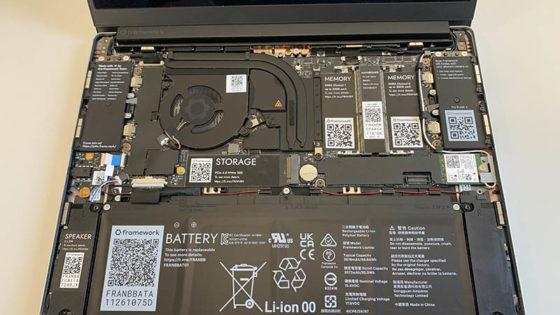
RAM erweitern im Notebook - 7 Tuning Tipps
Ob eine Aufrüstung möglich ist und ob eine RAM Erweiterung Notebook die richtige Maßnahme ist, sollte immer vorab geprüft werden. Wir erklären die wichtigen Fragestellungen am Beispiel eines ASUS S301LA Laptops.

Arbeitsspeicher aufrüsten – was muss beachtet werden?
Wenn das alte Notebook nicht mehr in der Geschwindigkeit arbeitet wie gewohnt ist es möglicherweise sinnvoll, den Arbeitsspeicher aufzurüsten. Oft reicht das schon, um den lahmen Alten wieder auf Trab zu bringen.
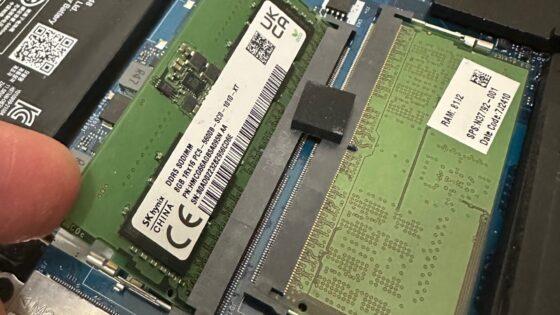
Kann ich überhaupt RAM nachrüsten?
Bei über 10.000 Laptops geht das nicht mehr!
Schockierende Zahlen - über 10.000 verschiedene Laptops aller Hersteller haben keinen RAM Speicher Sockel mehr - damit ist Aufrüsten unmöglich! Ob Dein Laptop dabei ist erfährst du hier.

JoGeek by Asus
JoGeek ist das neue Tochterunternehmen von Asus, welches universale Ersatzteile für Notebooks anbietet. Der passende JoGeek Arbeitsspeicher bietet die optimale Möglichkeit, am schnellsten und kostengünstigsten sofort mehr Leistung aus Ihrem Notebook rauszuholen.
Does the memory fit my device?
If you are unsure whether the RAM module fits your notebook, this video provides a short and clear answer to all important questions about compatibility.
Arbeitsspeicher im SALE
Alternativa para Asus 03A12-00030700 memoria 32GB DDR5-RAM
más gastos de envío
Alternativa para Dell AC774052 memoria 32GB DDR5-RAM
más gastos de envío
Alternativa para Hynix HMCG78AGBSA memoria 16GB DDR5-RAM
más gastos de envío
Alternativa para Hynix HMCG88AGBSA memoria 32GB DDR5-RAM
más gastos de envío
Alternativa para Micron MTC8C1084S1SC56BD1 memoria 16GB DDR5-RAM
más gastos de envío
Alternativa para Samsung M425R2GA3PB0-CWM memoria 16GB DDR5-RAM
más gastos de envío
Crucial CT16G4SFD832A memoria 16GB DDR4-RAM
más gastos de envío
Crucial CT16G4SFRA32A memoria 16GB DDR4-RAM
más gastos de envío
Crucial CT16G56C46S5 memoria 16GB DDR5-RAM
más gastos de envío
Crucial CT32G4SFD832A memoria 32GB DDR4-RAM
más gastos de envío
Crucial CT32G56C46S5 memoria 32GB DDR5-RAM
más gastos de envío
Crucial CT8G4SFRA32A memoria 8GB DDR4-RAM
más gastos de envío
Crucial CT8G4SFS832A memoria 8GB DDR4-RAM
más gastos de envío
Fujitsu 38019817 memoria 8GB DDR3-RAM DIMM reformado
más gastos de envío
Fujitsu S26361-F3697-L615 memoria 8GB DDR3-RAM DIMM reformado
más gastos de envío
Hynix HMA81GS6DJR8N-XN memoria 8GB DDR4-RAM
más gastos de envío
Hynix HMAA2GS6CJR8N-XN memoria 16GB DDR4-RAM
más gastos de envío
Hynix HMCG88AGBSA memoria 32GB DDR5-RAM
más gastos de envío
Kingston 9905790-052.A00G memoria 16GB DDR5-RAM
más gastos de envío
Kingston KCP3L16SD8/8 memoria 8GB DDR3L-RAM
más gastos de envío
Kingston KF556S40IB-16 memoria 16GB DDR5-RAM
más gastos de envío
Kingston KVR16LS11/8 memoria 8GB DDR3L-RAM
más gastos de envío
Lenovo 5M31Q64658 memoria 8GB DDR4-RAM
más gastos de envío
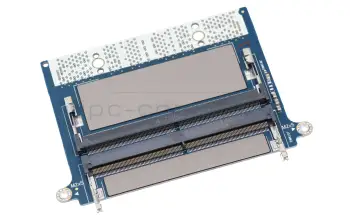
RN12H original Dell CAMM Adapter para 2x SO-DIMM DDR5 RAM
más gastos de envío
Substituto para Acer KN.0320G.029 memoria 32GB DDR5-RAM
más gastos de envío
Cómo encontrar rápidamente la memoria adecuada
Los portátiles sólo requieren el tipo de memoria RAM SO-DIMM. Para encontrar la RAM adecuada, tiene la posibilidad de buscar a través del modelo de su portátil o a través de nuestro Buscador de Módulos de RAM.
Para encontrar una memoria adecuada para su modelo, por favor busque las especificaciones del dispositivo en la placa de identificación de su portátil. Donde puedes encontrarlos te mostramos aquí. Después puedes ver los elementos coincidentes en la categoría de RAM.
Alternativamente puede navegar a la memoria adecuada usando el Buscador de Módulos de RAM. Usando los filtros puedes encontrar rápidamente la memoria que estás buscando. Puede ser filtrado por capacidad, tipo de memoria, reloj (velocidad) y muchos otros valores. Si no conoce los datos técnicos de la memoria RAM que necesita, nuestro artículo de preguntas frecuentes puede ayudarle. Le mostramos con qué herramientas puede determinar si tiene un tipo de memoria DDR3, DDR3L o DDR4 y cómo se pueden leer los demás datos técnicos.
Todos los portátiles modernos de calidad hoy en día utilizan una operación de dos canales, la llamada operación de doble canal. Por lo tanto, sería ventajoso que los módulos de memoria procedieran del mismo fabricante y tuvieran la misma capacidad y velocidad de reloj. De lo contrario, pueden surgir problemas en el funcionamiento de doble canal.
Laptop RAM FAQ
Here you can find all questions and answers surrounding laptop RAM
- Die wichtigsten Infos zum Arbeitsspeicherkauf?
Beim Kauf von RAM für dein Laptop sind ein paar Punkte entscheidend, damit der Speicher wirklich passt und sinnvoll ist:
- Kompatibler RAM-Typ
Dein Notebook unterstützt nur bestimmte RAM-Typen, z. B. DDR4 oder DDR5, jeweils als SO-DIMM (Laptop-Bauform). Ein anderer Typ funktioniert technisch nicht. - Maximale Kapazität & Slots
Jedes Notebook hat eine maximale RAM-Gesamtgröße und meist 1–2 Steckplätze. Wichtig ist:- Wie viel RAM ist aktuell verbaut?
- Wie viele Slots sind frei?
- Wie viel RAM unterstützt dein Modell maximal?
Daran orientierst du dich bei der Wahl von 8, 16, 32 GB oder mehr.
- Takt & Kompatibilität
Der neue RAM sollte zum unterstützten Takt deines Systems passen (z. B. 5400 MHz). Schnellere Module passen oft, laufen dann aber mit dem niedrigeren Takt. Mischbetrieb (unterschiedliche Module) kann funktionieren, ist aber potenziell fehleranfälliger als ein einheitliches Kit. - Einsatzgebiet
- Office/Internet: meist reichen 8–16 GB
- Gaming, Bildbearbeitung: 16–32 GB
- Video/CAD/Professionelles Arbeiten: 32 GB und mehr, je nach Software
Mehr RAM bringt vor allem dann etwas, wenn du aktuell merkst, dass dein System auslagert, langsam wird oder Programme „ruckeln“.
- Aufrüstbarkeit prüfen
Bei vielen aktuellen Ultrabooks ist der RAM fest verlötet und kann nicht getauscht oder erweitert werden. Vor dem Kauf solltest du unbedingt prüfen, ob dein Notebook überhaupt aufrüstbar ist.
Tipp:
Nutze eine gezielte Modellsuche/Kompatibilitätsprüfung (z. B. über unseren Shop nach Hersteller/Modell). Dann siehst du direkt, welche RAM-Module technisch freigegeben sind und wie viel Aufrüstung bei deinem Notebook sinnvoll und möglich ist. - Kompatibler RAM-Typ
- Can I install different RAM modules, than the ones already installed
You can install RAM from a different manufacturer, as long as the specifications are the same.
For example, when your computer currently has a DDR3 SO-DIMM module with a speed of 1600MHz installed, you should only use DDR3 SO-DIMMs with a 1600 MHz speed to upgrade/replace your RAM. It is possible to use different frequencies but the system will then use the speed of the slowest RAM module.

- Can I exchange my RAM myself
Yes, you can, it only requires a bit of technical knowledge and maybe a manual.
We recommend letting a technician do it.
There are notebooks where the RAM is located on the back of the machine, these often have an access hatch for easier installation of RAM. If the RAM is located underneath the keyboard a full disassembly of the notebook is required.
- Windows crashes all the time and shows Bluescreens, is my RAM broken
There can be many reasons for your operating system crashing but bluescreens are often a clear sign for defective RAM. Error messages like "pci.sys could not be found" also hint at faulty RAM.
You can use a memory test to check your RAM for faults. These can be found on every Ubuntu installation CD under "Memtest".
On www.ubuntu.com you can download an image of this CD, burn it o a CD and boot your PC from it to execute the Memtest on it.
Or you could bring your laptop to a technician, who can fix the fault for you.
- Does the MHz specification have to match
From DDR4 onwards, the MHz no longer play a role in the compatibility.
- Why does my notebook show less RAM, than I have installed
It could because you installed a 32-Bit operating system, since they can only address up to 4 GB of RAM. Additionally, other system components like your graphics card also need RAM. That is why if you have 4GB installed you won’t be able to utilize every last MB of it.
A 64-bit operating system can address more than 4GB of RAM. So, you can install more than 4GB even in an older Notebook, provided the rest of the hardware supports it too.
- What speed does my RAM run at
In Windows 10 open the Task-Manager (Control+Shift+Escape), then click on more details in the bottom left corner. Select the tab performance and click on RAM Now you will be able to see many values about your RAM including its speed.

- What RAM do I need for my Notebook
You can use the following tools to see what RAM your Notebook needs:
AIDA (Download: www.lavalys.com)
CPUZ (Downlaod: www.cpu-z.de)
SIW (System Information for Windows) (Download from www.heise.de)
HWiNFO (Direct download here)
Alternatively, you can remove the currently installed RAM and read the necessary specifications from the labels on them. Should there be no label or should you not be able to recognize the type of RAM needed. You can still use the tools listed above or consult a specialist.
- Wie öffne ich mein Laptop fachgerecht – und worauf muss ich beim RAM Tausch achten?
Das Öffnen eines Laptops erfordert Sorgfalt, das richtige Werkzeug und etwas Erfahrung.
Grundregeln beim Öffnen:
- Gerät vollständig vom Strom trennen und, falls möglich, Akku entfernen bzw. stromlos schalten.
- Geeignetes Feinmechanik‑Werkzeug und ESD‑Schutz verwenden.
- Gehäuseschrauben systematisch lösen und Bodenabdeckung vorsichtig mit einem Kunststoff‑Tool abheben.
- Keine Gewalt anwenden – viele Geräte besitzen versteckte Schrauben unter Gummifüßen oder Aufklebern.
In unserer Reihe „Mein Laptop von innen“ zeigen wir anschaulich, wie verschiedene Notebook‑Modelle aufgebaut sind und welche Schritte nötig sind, um sie sicher zu öffnen.
Die Videos helfen dir, die Bauweise unterschiedlicher Marken (z. B. HP, Lenovo, Dell, Acer) besser zu verstehen und zeigen, wo sich Akku, Mainboard oder RAM befinden.
Wenn du dir beim Öffnen unsicher bist oder fest verbaute Komponenten besitzt, übernehmen unsere Techniker in der Werkstatt den sicheren Ausbau und die Reparatur. - What is the maximum amount of RAM my laptop supports
Expanding the main memory by retrofitting a RAM module is a common tuning measure. Significant improvements result when working with many applications in parallel or when the device already swaps out data to the FP by default (swapping) from the operating system. Nowadays, more and more devices have their main memory soldered directly to the mainboard and can therefore not be replaced. The decisive factor is whether the device still has a free slot for additional memory modules and how many GB you can put in there in total. If such a free slot is available, it is important to determine the right memory module and insert it into the appropriate slot, which is usually located under the bottom of the device or under the keyboard. Almost all devices, with the exception of some ultrabooks and netbooks, already have two or more sockets for storing memory modules. Up to which GB maximum size you can upgrade depends on the mainboard, chipset (information on this is provided in the device manual) and the availability of the modules.
See also: - Where can I see how much memory I have installed in Windows 10
To see how much memory you have installed in your PC, you first need to open the Task-Manager. The you click on "more details" in the bottom left corner. Now choose Performance in the menu on the top, afterwards select Memory from the menu on the left. The you will not only be shown the amount of Memory in your System, but also further details, like how many slots are occupied. If there still is a free slot, you can easily double your memory by installing another one of the same modules already installed.
